Now that Winter Break has begun, I finally sat down long enough to locate the Help Pages for the Mac Apps, including the new iLife and iWork suites. Be sure to bookmark this link!
Mac Apps Support Page
Saturday, December 21, 2013

Monday, November 11, 2013
The Answer To Last Night's Post
I went back to iMovie this morning and finally found an answer - of sorts.
Once you have made the video the way you want it, go to the bottom left and click on Sound Effects.

You then go above the window with the listed effects and click on the drop-down menu.
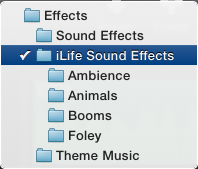
Change Effects for iLife Sound Effects. There is also Theme Music to choose from, which contains many of the loops you found in Garageband.
If you wanted to use the effects from a Garageband Jam Pack, or if you were wanting to make a customized soundtrack for your movie, you will still need to jump through the hoops I described last night.
What Apple is counting on is that most people don't use those two things, they just use the generic loops, so they can now be found in iMovie instead of having to use Garageband at all.
Once you have made the video the way you want it, go to the bottom left and click on Sound Effects.
You then go above the window with the listed effects and click on the drop-down menu.
Change Effects for iLife Sound Effects. There is also Theme Music to choose from, which contains many of the loops you found in Garageband.
If you wanted to use the effects from a Garageband Jam Pack, or if you were wanting to make a customized soundtrack for your movie, you will still need to jump through the hoops I described last night.
What Apple is counting on is that most people don't use those two things, they just use the generic loops, so they can now be found in iMovie instead of having to use Garageband at all.
Sunday, November 10, 2013
iMovie and Garageband
 |
| iMovie Logo Courtesy Apple, Inc. |
I use Garageband for both recording music and to score movies. If you use it strictly for recording music, you're going to love the new version. If you use it to score movies, however, you're going to feel, at first, confused, then sad that it looks as though you've taken a few steps back.
The new iMovie is completely reconfigured. It has a much simpler look to it, but it packs a lot more into it than what meets the eye. That's because a lot of things appear to be "hidden" until you click a button when you need it.
Normally, when I get new software like this, I go to the video tutorials. None yet. I went to the Help Pages. They came up with the message saying they do not exist. I guess Apple still has some tweaking to do of it's new products.
I took some footage I got from an iCreate Magazine (they have the wonderful CD's on the back with bonus footage) to use and created my own little chord music on the keyboard for the piano.

The new iMovie is now focused on 3-4 windows. To the left you have the projects and events libraries. No more do you have to enter and exit projects, you just switch to another project. The top window panel is where the videos with the events show, the bottom give you the video of the current project.

The top bar gives you the first round of choices, to import more event data (your raw footage), create a new project, share. You can also move from the Library to the Theater (where your finished projects go when you share them). You can also enhance and adjust the video - more resources are there for you to check out when you click on the Adjust button.

The import tool of the new iMovie is more powerful than the previous. If you were looking for footage from an external hard drive, it often didn't work for me and I would have to manually drag the video onto my computer's desktop in order for the old iMovie to find it. Not any more. A pop up window gives you all kinds of options, including the file listings of your external hard drive on the bottom in order to locate the video file.
You can also import from your iPad, however the footage usually synchs into your iPhoto, so there is no point in duplicating the work. Simply look for it in the iPhoto section without the import.

When importing, make sure you are not using an event that has already been created. Above the Movie Library on the top center bar, there will be delta (triangle) with the arrow pointing up. Mouse over it and the New Event will appear.

When you click on the Create button, you can choose from a movie or a trailer. Both have the formats you knew before, plus some new ones that have been added for this new version.

Once you've named your project, you are ready to start adding the raw footage to your project. A new change is how you add the video. In the previous version of iMovie there was a button you could push to bring selected video into the project. Now it is a plus sign on the video itself. You must be sure to select what you want, though, before you hit the plus, or it will give you 3-4 seconds of video from where you have the marker.

Now you are ready for the sound. On the bottom left corner should appear some options:

The Content Library contains more than just sounds, but this is now where it is found. The Transitions are ways for you to cut from one scene to start another. Titles allow for you to add text. Maps and Backgrounds are now combined, but they haven't changed since the last version. I'm kind of sad by that, I was hoping by now we could do maps within the USA only as well as by State.
They have split out the Sound Effects from Garageband, which is very handy.
Garageband is where things get tricky, particularly if you had music made in the previous version that has not been converted and saved by the new version. It will simply give you a blank screen if you have not created anything in the new version yet.
At this stage, you instead need to Share your movie into iTunes. This was the only way I could find it when I opened Garageband.
Now, for Garageband.

In the previous version, Garageband used to allow you to score your movie and then ship it out via Garageband. It doesn't do that anymore. You no longer have a Movie or Podcast option on Garageband. This is where I feel Apple has taken a step backwards.
When you go into Garageband now, you are instead selecting which kind of music you want to record or build loops. The crazy part is there is no indication of which one you use to get orchestrated music. I have the orchestra loops installed from previous versions and wanted to use them. I finally found them under the Keyboard collection.

The key is to go to the Track drop-down menu and click on Show Movie Track. This will allow you to bring your movie into Garageband.

Once you have added your music and you have it the way you want it, you have to then Share the music to the Media Browser. That's right, you don't just simply export the combined feature out anymore. You have to go back to iMovie, re-open your project, then locate your score in the media browser, add it, make sure the video meets with what you want, then you share the package.
I know their excuse is because of the Theater feature within iMovie. The issue I have is, these two products are made by the same company. The two divisions though - the iMovie people and the Garageband people - are obviously not talking to one another, or you would be able to export from Garageband AND have it import directly into the iMovie Theater. The fact that it doesn't speaks volumes.
Well, there you have it in a nutshell. Happy movie making!
Wednesday, October 10, 2012
Sunday, July 29, 2012
A Day In The Life...
Have you ever wondered what it is like to run a computer lab in a school? And yes, I do love helping people out, just like this genius.
Friday, July 27, 2012
Florida Dept. of Ed
I love great content on iTunes U. Florida Dept. of Ed is one of those content creators on iTunes U I highly recommend people take a look at on iTunes (or iTunes U on their iPad/iPod Touch/iPhone.
Here is the link: http://itunes.apple.com/us/institution/florida-department-education/id399604477
Be sure to check out the Digital Tools section, there are some great video podcasts demonstrating student use of technology to reinforce a lesson.
And here is a little video of theirs from YouTube.
Here is the link: http://itunes.apple.com/us/institution/florida-department-education/id399604477
Be sure to check out the Digital Tools section, there are some great video podcasts demonstrating student use of technology to reinforce a lesson.
And here is a little video of theirs from YouTube.
Saturday, July 14, 2012
Two Latest Favorites For iPad
This post is going to be about hardware, rather than the software apps I've mentioned elsewhere. But, if you use an iPad, these two items are must haves.
The first is the Logitech Keyboard Case for the iPad. This works for iPad and the new iPad. This is fantastic if you are typing anything at length (including blog posts). It is a bluetooth device that is easily set up on your iPad, with a battery that is rechargeable. I got mine for $79 at Costco.
The second item is new and really exciting for those of us who love to watch a lot of movies using our iPads. It's from Seagate and is called the GoFlex Satellite. It's a wireless external hard drive to use with the iPad.
It doesn't allow you to save from the iPad (at least mine doesn't), but you can download from it to your iPad AND you can stream movies from it directly to your iPad.
It comes with an adapter to allow you to plug into your Mac to add whatever it is you want to store on it, and with 500GB of space, you can store a lot of stuff.
It operates off of WiFi, creating it's own little "network" from your iPad that allows you to stream to up to 5 devices simultaneously.
The downside to this is you cannot broadcast what you are streaming from it to a tv or projector (at least it's not worked for me), but you can download to your iPad the movie you want and then broadcast from your iPad using your video player.

The first is the Logitech Keyboard Case for the iPad. This works for iPad and the new iPad. This is fantastic if you are typing anything at length (including blog posts). It is a bluetooth device that is easily set up on your iPad, with a battery that is rechargeable. I got mine for $79 at Costco.
The second item is new and really exciting for those of us who love to watch a lot of movies using our iPads. It's from Seagate and is called the GoFlex Satellite. It's a wireless external hard drive to use with the iPad.
It doesn't allow you to save from the iPad (at least mine doesn't), but you can download from it to your iPad AND you can stream movies from it directly to your iPad.
It comes with an adapter to allow you to plug into your Mac to add whatever it is you want to store on it, and with 500GB of space, you can store a lot of stuff.
It operates off of WiFi, creating it's own little "network" from your iPad that allows you to stream to up to 5 devices simultaneously.
The downside to this is you cannot broadcast what you are streaming from it to a tv or projector (at least it's not worked for me), but you can download to your iPad the movie you want and then broadcast from your iPad using your video player.
Monday, July 9, 2012

Storybook Adventure

This is a web site I wish they would make into an app. It's from the Library of Congress, and it's designed to get kids excited to read.
The goal? Answer the questions correctly then click on items in the moving pictures that follow to collect your stickers. Then use the stickers after you are done with the story to create a card.
Link: Storybook Adventures
Latest Find From The National Archives
There are two iPad apps from the National Archives, one profiles a document per day, the other teaches you about what some of those documents mean. Both apps are free of charge.

Today's Document
This app allows you to see which document they have assigned per the date. You could have some fun with this, such as picking dates in U.S. history (July 4th or September 17th), or birthdays and other dates significant in the student's life to see what documents come up. For more, you have to click on the information link and go to their web site.
Link: Today's Document

The DocsTeach
This app is the interactive, teaching app that goes more in depth of how the documents impact our lives in the U.S. The challenge on the U.S. Consitution (it's a matching game between the documents and the articles of the constitution governing those documents) will be good for the older grades learning U.S. Civics.
Here is the link: DocsTeach
Today's Document
This app allows you to see which document they have assigned per the date. You could have some fun with this, such as picking dates in U.S. history (July 4th or September 17th), or birthdays and other dates significant in the student's life to see what documents come up. For more, you have to click on the information link and go to their web site.
Link: Today's Document
The DocsTeach
This app is the interactive, teaching app that goes more in depth of how the documents impact our lives in the U.S. The challenge on the U.S. Consitution (it's a matching game between the documents and the articles of the constitution governing those documents) will be good for the older grades learning U.S. Civics.
Here is the link: DocsTeach
Wednesday, July 4, 2012

Sunday, January 15, 2012
Basic Keyboarding Skills
Because of the ever changing and upgrading of operating systems, using software for typing/keyboarding only works for a short while. I no longer use software for this.
For young ones I use:
BBC - Dance Mat Typing
For the older students:
http://www.freetypinggame.net/
For young ones I use:
BBC - Dance Mat Typing
For the older students:
http://www.freetypinggame.net/
Teaching Household Words
Learning vocab words is great, but do kids learning English know what a bathtub is, or a sink?
This isn't all inclusive, but this site from Starfall is great for teaching some basic household words, as well as words about different parts of their bodies (heads, legs, feet, hands, etc.).
It's All About Me
This isn't all inclusive, but this site from Starfall is great for teaching some basic household words, as well as words about different parts of their bodies (heads, legs, feet, hands, etc.).
It's All About Me
Rhyming Words
More from PBS:
CH - http://pbskids.org/lions/stories/chickens-game.html
Hard C - http://pbskids.org/lions/stories/spicyhot-game.html
N - http://pbskids.org/lions/stories/country-game.html
ood, ook - http://pbskids.org/lions/stories/gooddog-game.html
or, ore - http://pbskids.org/lions/stories/cheesybread-game.html
From Scholastic:
Reggie the Rhyming Rhino
http://teacher.scholastic.com/activities/bll/reggie/index.htm
From other sources:
Roy The Zebra
BBC
CH - http://pbskids.org/lions/stories/chickens-game.html
Hard C - http://pbskids.org/lions/stories/spicyhot-game.html
N - http://pbskids.org/lions/stories/country-game.html
ood, ook - http://pbskids.org/lions/stories/gooddog-game.html
or, ore - http://pbskids.org/lions/stories/cheesybread-game.html
From Scholastic:
Reggie the Rhyming Rhino
http://teacher.scholastic.com/activities/bll/reggie/index.htm
From other sources:
Roy The Zebra
BBC
Matching Sounds
PBS Kids is fantastic for basic literacy. Be sure to explore the site for all kinds of different learning exercises.
Pounce!
Pounce!
Long And Short Vowel Sounds
Starfall is another fantastic site to help with the basic phonetic reading, but they've also added some things for math as well. be sure to browse around if you've never used this site:
Learn To Read
Learn To Read
Putting Words in Alphabetical Order
Earobics is a fantastic company designed with online software to help readers develop their phonetic skills. Some students may have hearing or speech impairments that make this more difficult, these people are also great at working with these issues.
http://www.earobics.com/
Putting words in alphabetical order:
http://www.earobics.com/gamegoo/games/pawpark2/pawpark2.html
http://www.earobics.com/
Putting words in alphabetical order:
http://www.earobics.com/gamegoo/games/pawpark2/pawpark2.html
Alphabet Websites
Learning the Roman Letters of the alphabet used in the U.S. English language can be daunting. It's even more difficult if the student comes from a country using non-Roman letters. Here are some sites to help:
http://www.starfall.com/n/level-k/index/play.htm?f
http://www.fisher-price.com/us/fun/games/abc/default.asp
ABC Match
http://pbskids.org/lions/games/theospuzzles.html
Matching the Upper case letters with the Lower case letters:
PawPark from GooGames
http://www.starfall.com/n/level-k/index/play.htm?f
http://www.fisher-price.com/us/fun/games/abc/default.asp
ABC Match
http://pbskids.org/lions/games/theospuzzles.html
Matching the Upper case letters with the Lower case letters:
PawPark from GooGames
Mousing Skills Practice
The school I work at serves disadvantaged children. Many of these students come to the school (particularly in kindergarten) not knowing how to use a mouse.
These are some web sites that can help with improving those "mousing skills".
http://www.mouseprogram.com/mousepractice/
This second site also helps children learn how to listen and follow instructions, as well as practice their mousing skills:
http://www.earobics.com/gamegoo/games/tina2/tina2.html
These are some web sites that can help with improving those "mousing skills".
http://www.mouseprogram.com/mousepractice/
This second site also helps children learn how to listen and follow instructions, as well as practice their mousing skills:
http://www.earobics.com/gamegoo/games/tina2/tina2.html
Subscribe to:
Posts (Atom)